Sunday, March 18, 2012

How to Resolve BCS (SharePoint 2010) Error "Login failed for user 'NT AUTHORITY\ANONYMOUS LOGON"

Here are the steps to resolve BCS (SharePoint 2010) Error "Login failed for user 'NT AUTHORITY\ANONYMOUS LOGON":
1) Open Powershell (Run as Administrator) and type the following lines:

$bdc = Get-SPServiceApplication | where {$_ -match "Business Data Connectivity Services"}
$bdc.RevertToSelfAllowed = $true
$bdc.Update();

NOTE - That your BCS Service Application should match the name as above. Else change it to what your BCS Service application is called (the way you find out is by going to Central Admin > Application Management > Manage Service Applications (and look for BCS Service App name)

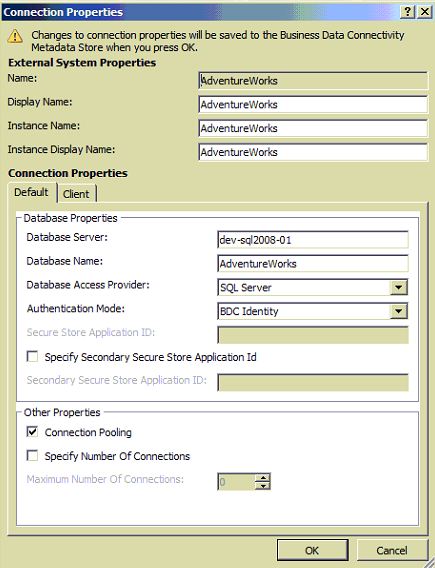
Once above is done, Open the External Content Type in SharePoint Designer 2010 and Click on Edit Connection Properties:


Once the Edit Connection Properties dialog opens, ensure that you have selected the "BDC Identity" value for the Authentication Mode property


Go Back to the ECT Read screen in your SharePoint site and hold your Ctrl key and click the refresh button on your browser. EUREKA! The error "Login failed for user 'NT AUTHORITY\ANONYMOUS LOGON" should now get resolved and you should see results displayed from yor LoB

Monday, January 30, 2012

Annoying DOTNETNUKE 5.x or 6.x version ISSUE - Subquery returned more than 1 value. This is not permitted when the subquery follows =, !=, <, <= , >, >= or when the subquery is used as an expression.

I was running a DNN app on my local machine. I have now moved it to my server and am trying to get it working.

Note that I am using Godaddy hosting

ERROR IS AS FOLLOWS:
Subquery returned more than 1 value. This is not permitted when the subquery follows =, !=, <, <= , >, >= or when the subquery is used as an expression.
Description: An unhandled exception occurred during the execution of the current web request. Please review the stack trace for more information about the error and where it originated in the code.

Exception Details: System.Data.SqlClient.SqlException: Subquery returned more than 1 value. This is not permitted when the subquery follows =, !=, <, <= , >, >= or when the subquery is used as an expression.

Source Error:

An unhandled exception was generated during the execution of the current web request. Information regarding the origin and location of the exception can be identified using the exception stack trace below.

Stack Trace:


[SqlException (0x80131904): Subquery returned more than 1 value. This is not permitted when the subquery follows =, !=, <, <= , >, >= or when the subquery is used as an expression.]
System.Data.SqlClient.SqlConnection.OnError(SqlException exception, Boolean breakConnection) +1953274
System.Data.SqlClient.SqlInternalConnection.OnError(SqlException exception, Boolean breakConnection) +4849707
System.Data.SqlClient.TdsParser.ThrowExceptionAndWarning(TdsParserStateObject stateObj) +194
System.Data.SqlClient.TdsParser.Run(RunBehavior runBehavior, SqlCommand cmdHandler, SqlDataReader dataStream, BulkCopySimpleResultSet bulkCopyHandler, TdsParserStateObject stateObj) +2392
System.Data.SqlClient.SqlCommand.FinishExecuteReader(SqlDataReader ds, RunBehavior runBehavior, String resetOptionsString) +204
System.Data.SqlClient.SqlCommand.RunExecuteReaderTds(CommandBehavior cmdBehavior, RunBehavior runBehavior, Boolean returnStream, Boolean async) +954
System.Data.SqlClient.SqlCommand.RunExecuteReader(CommandBehavior cmdBehavior, RunBehavior runBehavior, Boolean returnStream, String method, DbAsyncResult result) +162
System.Data.SqlClient.SqlCommand.InternalExecuteNonQuery(DbAsyncResult result, String methodName, Boolean sendToPipe) +175
System.Data.SqlClient.SqlCommand.ExecuteNonQuery() +137
Microsoft.ApplicationBlocks.Data.SqlHelper.ExecuteNonQuery(SqlConnection connection, CommandType commandType, String commandText, SqlParameter[] commandParameters) +74
Microsoft.ApplicationBlocks.Data.SqlHelper.ExecuteNonQuery(String connectionString, CommandType commandType, String commandText, SqlParameter[] commandParameters) +93
Microsoft.ApplicationBlocks.Data.SqlHelper.ExecuteNonQuery(String connectionString, String spName, Object[] parameterValues) +87
DotNetNuke.Data.SqlDataProvider.UpdateServerActivity(String ServerName, String IISAppName, DateTime CreatedDate, DateTime LastActivityDate) +192
DotNetNuke.Entities.Host.ServerController.UpdateServerActivity(ServerInfo server) +76
DotNetNuke.Common.Initialize.InitializeApp(HttpApplication app) +474
DotNetNuke.Common.Initialize.Init(HttpApplication app) +145
DotNetNuke.HttpModules.RequestFilter.RequestFilterModule.FilterRequest(Object sender, EventArgs e) +187
System.Web.SyncEventExecutionStep.System.Web.HttpApplication.IExecutionStep.Execute() +68
System.Web.HttpApplication.ExecuteStep(IExecutionStep step, Boolean& completedSynchronously) +75

ISSUE FIX IS AS FOLLOWS:
Goto SQL Server, Find the Stored Procedure called "UpdateServerActivity" and alter it as follows (change highlighted in RED):


ALTER PROCEDURE dbo.UpdateServerActivity
    @ServerName   nvarchar(50),
    @IISAppName   nvarchar(200),
    @CreatedDate  datetime,
    @LastActivityDate datetime
AS
 DECLARE @ServerID int
 -- SET @ServerID = (SELECT ServerID FROM dbo.WebServers WHERE ServerName = @ServerName AND IISAppName = @IISAppName)
 SET @ServerID = (SELECT Top 1 ServerID FROM dbo.WebServers WHERE ServerName = @ServerName AND IISAppName = @IISAppName order by LastActivityDate DESC)

 IF @ServerID IS NULL
  BEGIN
   -- Insert
   INSERT INTO dbo.WebServers (
    ServerName,
    IISAppName,
    CreatedDate,
    LastActivityDate,
    [Enabled]
   )
   VALUES (
    @ServerName,
    @IISAppName,
    @CreatedDate,
    @LastActivityDate,
    0
   )
  END
 ELSE
  BEGIN
   -- Update
   UPDATE dbo.WebServers
    SET
     LastActivityDate = @LastActivityDate
    WHERE  ServerName = @ServerName AND IISAppName = @IISAppName
  END

GO

Sunday, January 15, 2012

The server returned a non-specific error when trying to get data from the data source. (SharePoint Designer 2007 error)

If you see this error in SharePoint Designer (click on Data Source and Show Data) then check the following:
1) If any calculated columns are used on corresponding list then make sure that any conditional statements using IF does not use "" in non-string data type fields. For example using IF([IsActive] = 'Yes', '', 'Test') - use of '' should be replaced with empty string if type is number etc
2) Check the SelectCommand within the Data View as well as DataFields and ensure that there are no fields/columns used which does not exist on the corresponding list

Friday, January 06, 2012

EDMX Issue - The version of SQL Server in use does not support datatype ‘datetime2′

Here is how you resolve - Open your EDMX in Notepad or Visual Studio. At the top you will find the storage model and it has an attribute ProviderManifestToken. This has should have the value 2008. and change that to 2005.

Rrecompile and everything should work.

Sunday, May 01, 2011

Access to the path 'C:\Program Files\Common Files\Microsoft Shared\Program Files\Common Files\Microsoft Shared\Web Server Extensions\\14\template\layouts\Test is denied

I started getting this really strange error while using a set of 3rd party controls & web parts from KWizCom (was working perfectly well on my dev box but stopped working on prod box):

Access to the path 'C:\Program Files\Common Files\Microsoft Shared\Web Server Extensions\14\template\layouts\KWizCom_WikiPlus\WPlibFiles\wkptmpl.aspx' is denied

SOLUTION
1) Goto the corresponding folder under layouts (in my example KWizCom_WikiPlus), right click and then select Properties. Click on Security Tab and add the following accounts, namely NETWORK_SERVICE, WSS_ADMIN_WPG and WSS_RESTRICTED_WPG_V4 and give them "Full Control"

2) Click on "Advanced Settings" and Check Include inheritable permissions... and Replace all child objects permissions... and click OK

This should fix the "... access denied ..."

Friday, April 15, 2011

Open Links in a new window in SharePoint 2010

Beleive it or not, but SharePoint 2010 OOB does not support opening links in a new browser window when using the URL field/column. The best work around is to:
  1.  open the page with the XSLTViewWebpart that displays the hyperlinks in SharePoint designer.
  2. Now Click on Design tab on SharePoint Designer and select "Customize XSLT > Customize Entire View".
  3. Then locate your <a> tag and you would note that the attribute value set to href='{$url}'. Beside this attribute include the following - onclick="window.open(this.href); return false;" onkeypress="window.open(this.href); return false;"
  4. Save and Preview the page in browser and eureka the links for the above web part will now open in new browser window

soap:ServerServer was unable to process request. ---> Value does not fall within the expected range.

If you renamed your SharePoint site or added a new Alternate access mapping (access via central admin), then use the new mapped name using SharePoint Designer 2010 (as opposed to the servename you might be using now). And you would notice that this error "soap:ServerServer was unable to process request. ---> Value does not fall within the expected range." goes away...

Friday, April 08, 2011

How to hide View All Site Content for everyone except for Admin users in SharePoint 2010

look for this tag on default.master or the custom master page you are using:

<SharePoint:ClusteredSPLinkButtonid="idNavLinkViewAllV4"runat="server"PermissionsString="ViewFormPages"NavigateUrl="~site/_layouts/viewlsts.aspx"ImageClass="s4-specialNavIcon"ImageUrl="/_layouts/images/fgimg.png"ImageWidth=16ImageHeight=16OffsetX=0OffsetY=0Text="<%$Resources:wss,quiklnch_allcontent_short%>"

Replace the PermissionsString property in above tags from "ViewFormPages" to "ManageWeb"
accesskey="<%$Resources:wss,quiklnch_allcontent_AK%>"/>

Hide the Recycle Bin link on the left hand bar for non-admin users in SharePoint 2010

look for this tag on default.master or the custom master page you are using:

<SharePoint:SPLinkButton runat="server" NavigateUrl="~site/_layouts/recyclebin.aspx" id="v3idNavLinkRecycleBin" ImageUrl="/_layouts/images/recycbin.gif" Text="<%$Resources:wss,StsDefault_RecycleBin%>" PermissionsString="DeleteListItems" />
and the tag

<SharePoint:ClusteredSPLinkButtonrunat="server"NavigateUrl="~site/_layouts/recyclebin.aspx"ImageClass="s4-specialNavIcon"ImageUrl="/_layouts/images/fgimg.png"ImageWidth=16ImageHeight=16OffsetX=0OffsetY=428id="idNavLinkRecycleBin"Text="<%$Resources:wss,StsDefault_RecycleBin%>"CssClass="s4-rcycl"PermissionsString="DeleteListItems" />
Replace the PermissionsString property in above tags from "DeleteListItems" to "ManageWeb"

Friday, March 25, 2011

How to restore SharePoint 2010 Site Templates especially for Sites migrated from MOSS

After much painful debugging, I managed to resolve the issues related to Site Template save and restore for SharePoint 2010 based Sites. I noted that the SharePoint 2010 site itself had corrupted lists "Calendar", “Issue” etc (which does not get migrated properly from MOSS), which I had to delete and then created a new lists (such as “IssuesRegister”) in SharePoint 2010 and painfully relinked all workflows, data views, dispforms etc. I also deleted all the master pages (starting with clarity_) and styles library as they were remains from MOSS/SharePoint Online instance and was causing incompatibility issues. Anyways after all this, I saved the site as Site Template and EUREKA IT WORKED!!

Once I got the Site Template, I restored the site on new server and got a series of missing features exceptions (with correlation IDs - for example "The site template requires that the Feature {e34b0b8e-6e21-49ad-8d2f-530a29d61175} be installed on the farm or site collection"). I painfully debugged through each missing feature ID and learned the following (in a very painful way again)
1)   Ensure that all Site Collection and site Features in Source and Destination SharePoint servers are identical.
2)   I used the Powershell script Get-SPFeature -Site <Site Collection name> | Sort Id | FT DisplayName,Id to get all features deployed and matched against the list of feature names from here against the corresponding missing feature complained by SharePoint 2010 on the new box. Once I identified the feature missing, I went ahead and enabled the feature (see point 2 below)
3)      The Following features are required for restoring all SharePoint 2010 Site Templates that were migrated from MOSS (For e.g. - http://shp2010test is the new server where I tried restoring the new site based on SharePoint 2010 Template) – USING POWERSHELL:
a.       Enable-SPFeature LocalSiteDirectorySettingsLink -Url http://shp2010test
b.      Enable-SPFeature InPlaceRecords -Url http://shp2010test
c.       Enable-SPFeature SignaturesWorkflow -Url http://shp2010test
d.      Enable-SPFeature HelpLibrary -Url http://shp2010test
e.      Enable-SPFeature LocationBasedPolicy -Url http://shp2010test
f.        Enable-SPFeature OpenInClient -Url http://shp2010test
g.       Enable-SPFeature MobileExcelWebAccess -Url http://shp2010test
h.      Enable-SPFeature TaxonomyFieldAdded -Url http://shp2010test
4)      Strangely there was no theme applied to new site and so I had to reset the theme on this new site to inherit from parent and EUREKA! The site was live and all workflows seems to be working ok!

Anyways all my pain and suffering today would hopefully lead to more seamless and easy migration from SharePoint 2007 to SharePoint 2010 and then moving migrated sites between SharePoint 2010 servers.

Sunday, March 13, 2011

Hide List Columns on Display, Edit and New Forms using JQuery

Follow the steps below to quickly hide List Columns on Display, Edit and New Forms using JQuery:
1) Create a scripts library in your site (or use the one you currently use to store your Javascript/*.js files)
2) Download the latest version of the JQuery file from here - http://code.jquery.com/jquery-1.5.1.min.js
3) Copy the above *.js files (namely "jquery-1.5.1.min.js") to the scripts folder created in Step 1
5) Open the form/page (such as NewForm.aspx or EditForm.aspx) where you want to hide editable list columns and add the following script at the end of the page (preferably below the end </style> tag:


<script language="javascript" type="text/javascript" src="/board/scripts/jquery-1.5.1.min.js"></script>
<script language="javascript" type="text/javascript">
$(document).ready(function() {
  $(nobr:contains("All Day Event")').closest('tr').hide();

});
</script>
6) Ensure that you replace the List Column name that you want to hide in the above script sample
7) Also note that on DispForm.aspx, you need to slightly modify the above script and look for "h3" tag instead of "nobr" tag in the above script

Auto populate current logged in user name in SharePoint 2010 People Picker control

Follow the steps below to Auto populate current logged in user name in SharePoint 2010 People Picker control:
1) Create a scripts library in your site (or use the one you currently use to store your Javascript/*.js files)
2) Download the latest version of the JQuery file from here - http://code.jquery.com/jquery-1.5.1.min.js
3) Dowload the latest version of the SPServices JQuery library from here - http://spservices.codeplex.com or http://spservices.codeplex.com/releases/55660/download/171214
4) Copy the above *.js files (namely "jquery-1.5.1.min.js" and "") to the scripts folder created in Step 1
5) Open the form/page (such as NewForm.aspx) where you want to default the People Picker control to the current user logged in and add the following script at the end of the page (preferably below the end style tag:


<script language="javascript" type="text/javascript" src="/board/scripts/jquery-1.5.1.min.js"></script>
<script language="javascript" type="text/javascript" src="/board/scripts/jquery.SPServices-0.6.0.min.js"></script>
<script language="javascript" type="text/javascript">
$(document).ready(function() {
 var userName = $().SPServices.SPGetCurrentUser({
  fieldName: "Name"
 });
 $("textarea[title='People Picker']").val(userName);
 $("div[title='People Picker']").text(userName);
});
</script>


Note - you need to replace the src property values above to reflect the correct path to the Javascript files downloaded in above steps and saved in the "scripts" folder.

Saturday, October 30, 2010

Creating performance counter category Enterprise Library Caching Counters.An exception occurred during the Install phase (Enteprise Library 4.1 October 2008)

Solve this weird issue by running "lodctr /r" (from Start > Run) or command line. For additional reference on what this command means check the TechNet article at : http://technet.microsoft.com/en-us/library/dd363694(WS.10).aspx

Thursday, September 02, 2010

Innovative Business solutions for the Cloud

Check out how this Microsoft GOLD Partner is leveraging the Microsoft Cloud to deploy "business solutions" readily deployable on the Cloud - http://portalnow.iqgroup.com

Wednesday, August 18, 2010

The form cannot be rendered. This may be due to a misconfiguration of the Microsoft SharePoint Server State Service

Fix this issue very quickly by following the steps below:
1) Open up the SharePoint 2010 Power Shell Command Prompt (can be found by clicking Start > All Programs > Microsoft SharePoint 2010 Products > SharePoint 2010 Management Shell locally on the SharePoint 2010 web server.
2) Run the following commands (in the sequence as mentioned below):
a. $serviceApp = New-SPStateServiceApplication -Name “State Service”
b. New-SPStateServiceDatabase -Name ”StateServiceDatabase” -ServiceApplication $serviceApp
c. New-SPStateServiceApplicationProxy -Name ”State Service” -ServiceApplication $serviceApp -DefaultProxyGroup

Wednesday, May 12, 2010

There is no file with URL 'IWConvertedForms .cvt' in this Web.System.IO.DirectoryNotFoundException: There is no file with URL 'IWConvertedForms/

A very annoying error for sure. Easily resolved by deactivating and reactivating the feature "IPFSWebFeatures" found %Program Files%/%Common Files%/microsoft shared/web server extensions/12/Template/Features

Use the following commands:

stsadm -o deactivatefeature -filename IPFSWebFeatures\feature.xml -force -url

stsadm -o activatefeature -filename IPFSWebFeatures\feature.xml -force -url

Tuesday, May 11, 2010

When creating a new site from a custom STP site template file, you get the "File Not Found" error after site is created

The problem could be that the master page did not map properly. To check and correct the problem, you have to "cheat" by directing your browser to the new site's master page settings page. That is done by replacing "default.aspx" in the current URL with "_Layouts/ChangeSiteMasterPage.aspx" e.g. http://site/web/default.aspx becomes http://site/web/_Layouts/ChangeSiteMasterPage.aspx.

After the page loads, you should see two error messages noting problems with both the site and system master pages.

In the Site Master Page section, ensure that the "Specify as master page to be used by this site and all sites that inherit from it" radio button option is selected. In the drop down below it, ensure that the "default.master" is selected. Scroll down to the System Master Page section. Ensure that the "Select a system master page for this site and it's subsites to inherit" option is selected and once again set the dropdown below to "default.master". Scroll down to locate the "OK" button and click it to reset the site master pages and fix the site.

Tuesday, April 06, 2010

Tips and Tricks to get CKS Forms Based Authentication Solution working properly

Codeplex FBA (http://cks.codeplex.com/releases/view/17901) is a great tool and its configuration is defined in great detail on this article (http://devcow.com/blogs/jdattis/archive/2007/02/23/Office_SharePoint_Server_2007_Forms_Based_Authentication_FBA_Walkthrough_Part_1.aspx). However there are a few gotchas to take care of when configuring MOSS on Windows Server 2008 box:

1) After you update the hosts file with the names such as:
127.0.0.1 projectextranet.test.com
127.0.0.1 projectextranet
After you create the SharePoint Application and Site collection successfully and try to access the site, you would notice that when you try to access either of the above sites through IE, it will prompt you for a username and password and the logon prompt keeps appearing that will eventually timeout. The quick fix for this is explained here - http://support.microsoft.com/kb/896861/en-us (apply the Microsoft Fix tool)

2)Once you have configured your FBA and you try to add the spadmin user created in the steps as described in article above through Central Administratio for the extranet site, it will not resolve the name. This error happens if your Central Administration Application Pool account does not have access to the FBA database created earlier. So make sure you give at least db_owner access to the Central Admin App Pool account and then perform iisreset. EUREKA! Now it will find your users in FBA DB

3)You get an error "Dependency feature with id 01aa8d8b-000a-4c35-8f4f-5d1280377650 for feature 'FBAManagementSelf' (id: 23c44729-fb03-4882-a0bf-c6fb3ddd81fd) is not installed." - Fix this by downloading the latest copy of FBA here (http://cks.codeplex.com/Project/Download/FileDownload.aspx?DownloadId=97072). Compile and build the deploy folder using WSPBuilder and then use the new CKS.FBA.wsp file to deploy to your farm

Wednesday, February 24, 2010

how to activate SharePoint Tool Basket Language files when using sptoolbasket from Codeplex

Simple yet tricky this little annoying thing when deploying the SPTOOLBASKET from Codeplex (http://sptoolbasket.codeplex.com/releases/view/21960). In order to activate the Document Ratings Feature, you need to activate prior the feature named "SharePoint Tool Basket Language files". But wait a minute this cannot be activated from Site Settings > Site Collection Features. You would need to do this for the Web Application via Central Administration > Manage Web Application Features (and select your web app). Simple as that but can be annoying to figure out especially if you are working on a project burning the midnight oil!

How to create a Windows Shell Right Click command to easily add your WSP to the Solution Store

How to create a Windows Shell Right Click command to easily add your WSP to the Solution Store.
Open regedit.exe and then make following changes in registry

Right Click on "HKEY_CLASSES_ROOT" and create a New Key called ".wsp" and set the value to "wspfile"

Right Click on HKEY_CLASSES_ROOT\wspfile and create a New Key called "shell"

Right Click on HKEY_CLASSES_ROOT\wspfile\shell and create a New Key called "Add Solution"

Right Click on HKEY_CLASSES_ROOT\wspfile\shell\Add Solution and create a New Key called "command" and set the value to "C:\Program Files\Common Files\Microsoft Shared\web server extensions\12\BIN\stsadm.exe" -o addsolution -filename "%1"

Note in all the above values, make sure you remove the first and last inverted commas on values

Now go back and open Windows Explorer and locate your WSP file on your file system. Right Click on that file with your mouse and EUREKA you will find "Add Solution" as a new Windows Shell command. Select this option to add the WSP to the MOSS Solution Store