Showing posts with label sharepoint 2010 designer. Show all posts

Sunday, March 18, 2012

How to Resolve BCS (SharePoint 2010) Error "Login failed for user 'NT AUTHORITY\ANONYMOUS LOGON"

Here are the steps to resolve BCS (SharePoint 2010) Error "Login failed for user 'NT AUTHORITY\ANONYMOUS LOGON":
1) Open Powershell (Run as Administrator) and type the following lines:

$bdc = Get-SPServiceApplication | where {$_ -match "Business Data Connectivity Services"}
$bdc.RevertToSelfAllowed = $true
$bdc.Update();

NOTE - That your BCS Service Application should match the name as above. Else change it to what your BCS Service application is called (the way you find out is by going to Central Admin > Application Management > Manage Service Applications (and look for BCS Service App name)

Once above is done, Open the External Content Type in SharePoint Designer 2010 and Click on Edit Connection Properties:


Once the Edit Connection Properties dialog opens, ensure that you have selected the "BDC Identity" value for the Authentication Mode property
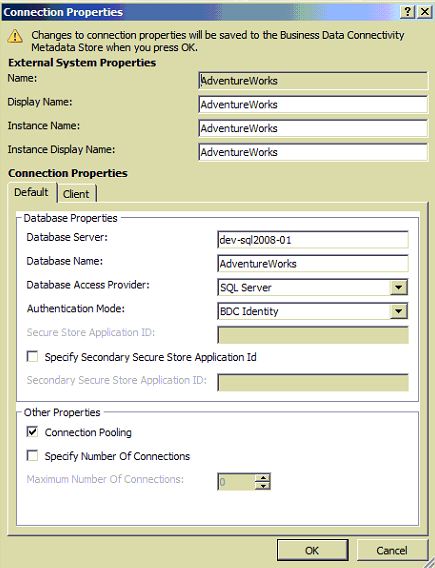

Go Back to the ECT Read screen in your SharePoint site and hold your Ctrl key and click the refresh button on your browser. EUREKA! The error "Login failed for user 'NT AUTHORITY\ANONYMOUS LOGON" should now get resolved and you should see results displayed from yor LoB

Friday, April 15, 2011

Open Links in a new window in SharePoint 2010

Beleive it or not, but SharePoint 2010 OOB does not support opening links in a new browser window when using the URL field/column. The best work around is to:
  1.  open the page with the XSLTViewWebpart that displays the hyperlinks in SharePoint designer.
  2. Now Click on Design tab on SharePoint Designer and select "Customize XSLT > Customize Entire View".
  3. Then locate your <a> tag and you would note that the attribute value set to href='{$url}'. Beside this attribute include the following - onclick="window.open(this.href); return false;" onkeypress="window.open(this.href); return false;"
  4. Save and Preview the page in browser and eureka the links for the above web part will now open in new browser window

soap:ServerServer was unable to process request. ---> Value does not fall within the expected range.

If you renamed your SharePoint site or added a new Alternate access mapping (access via central admin), then use the new mapped name using SharePoint Designer 2010 (as opposed to the servename you might be using now). And you would notice that this error "soap:ServerServer was unable to process request. ---> Value does not fall within the expected range." goes away...